Lesson 8 - Excel Consolidation

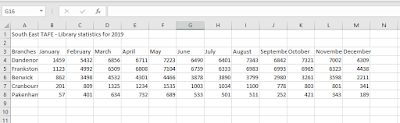
Working with Multiple Sheets – 3D Excel is great if you need to have a number of workbooks that are formatted the same - An example could be an organisation with multiple sites or branches or an organisation with multiple departments. Our Class Example South East TAFE library services has 5 branches in and around the south-east of Melbourne and the Mornington Peninsula. They are located in Dandenong, Pakenham, Cranbourne, Frankston, and Berwick. We need to create a budget for the next 12 months for each branch. Open Excel and put the names of each branch on the sheet tabs - either double-click or right-click and choose Rename. You can add new sheets by clicking on the little + button at the bottom left of the screen, next to the last sheet. We also need a sheet in front to summarise and total the Branches. Click on the Add New Sheet button and type in All Campuses as the sheet name. You can drag this sheet to the front by clicking on the TAB and dragging it to the fr...